Skip to main content

Personal

Business
Become a member of our credit union today!
Agriculture
Become a member of our credit union today!
About Us

Become a member of our credit union today!
Southwest Regional Credit Union’s 2-Step Verification (2SV)
What is 2-Step Verification?
2-Step Verification uses dynamically generated one-time-only verification codes to assist with a more secure login experience for Online Banking. Verification codes are generated and delivered from outside of the banking platform and are valid for a single use only. The codes are sent by SMS text message or email to destinations registered by a member to receive them.
During step-up authentication using 2-Step Verification, users are presented with a verification code entry page that advises them that a verification code has been generated and sent to them. Users must retrieve the verification code from the notification text message or email, then enter and submit it for verification. If the code is verified, user authentication is complete, and the member proceeds with their digital banking activities. A user has several attempts to provide the correct verification code before the member’s account is locked out.
Because of the brief duration for the use of generated verification codes, verification codes are inherently more secure than standing challenge questions and answers.
Enrollment
The enrollment page briefly describes what 2-Step Verification is and allows members to register a mobile phone number (for text messages) or an email address, through which one-time verification codes are sent during stepped-up authentications.
There is a grace period during which members can select a Not Now option on the enrollment page to defer enrollment. During the enrollment grace period, users who haven’t enrolled continue to be challenged with security questions during any stepped-up authentications.
To enroll for 2-Step Verification:
- Enter a text message phone number or email address on the Enable 2-Step Verification page, then select Send Code.
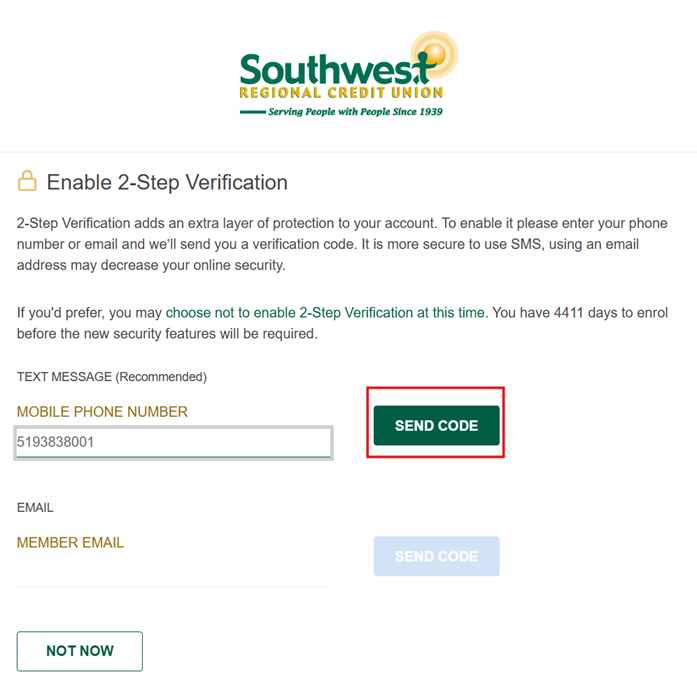
- Receive a verification code sent via text message or emaill to the mobile phone number or email address that was entered.
- Enter the received verification code on the Enter Your Verification Code page, then select Continue.
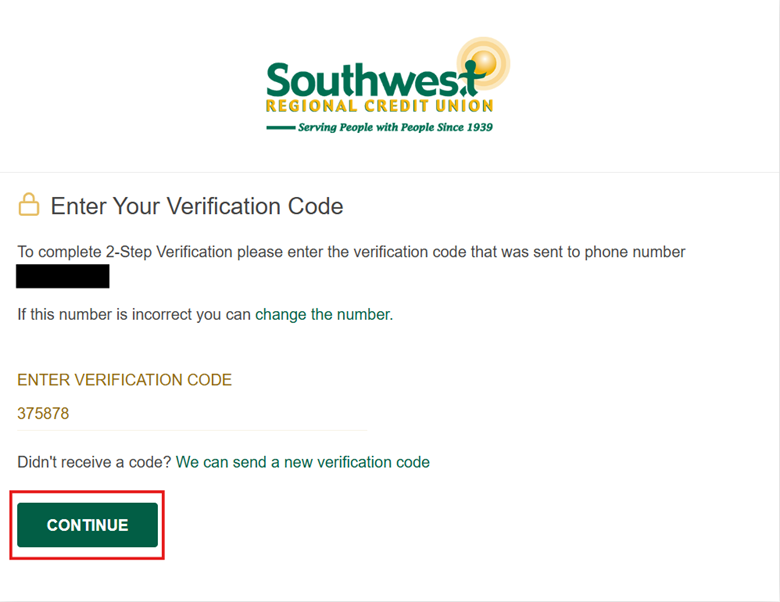
- Confirm the enrollment was successfully completed, then select Continue to complete the enrollment process.
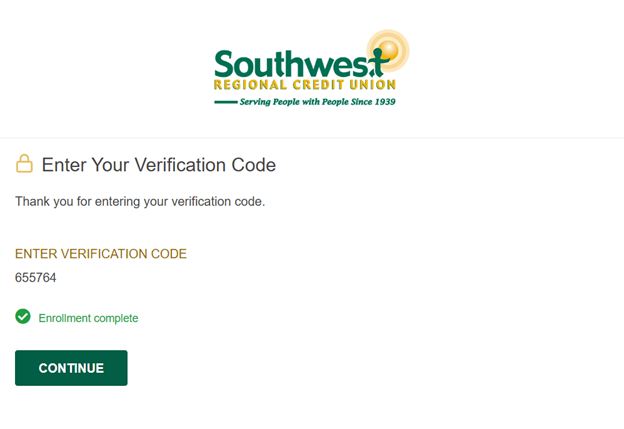
The enrollment process ensures that a phone number or email address provided has been successfully tested to receive notifications. It also provides the member with practical experience in using 2-Step Verification.
If, during enrollment, the member fails to enter the correct verification code on the Enter Your Verification Code page, they see an error message when they select Continue.
NOTE: Members can have multiple verification methods and that can be configured later i.e. both email and SMS text messages.
Maintenance
At any time after enrollment, members can add or edit phone numbers or email addresses used in 2-Step Verification notifications.
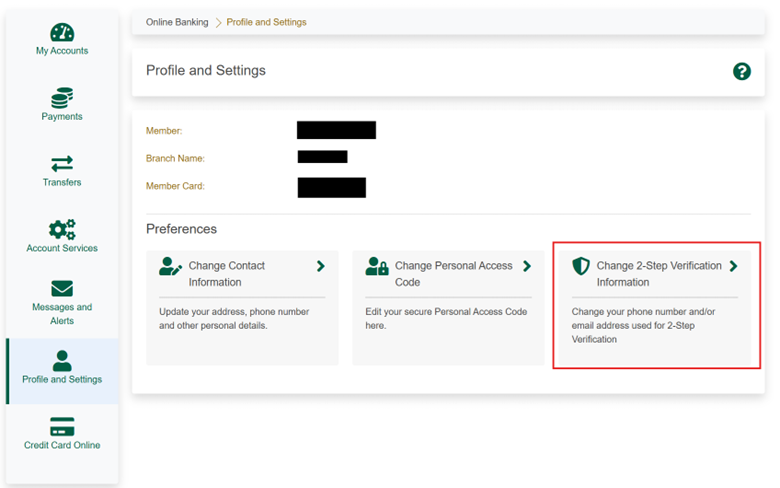
Members can go through the Profile & Settings page or through the navigation menu in Online Banking to add or edit their 2-Step Verification settings.
Adding a Phone Number or Email Address
Using the Update Contact Information page, members can register a phone number or email address depending on which options are available to them.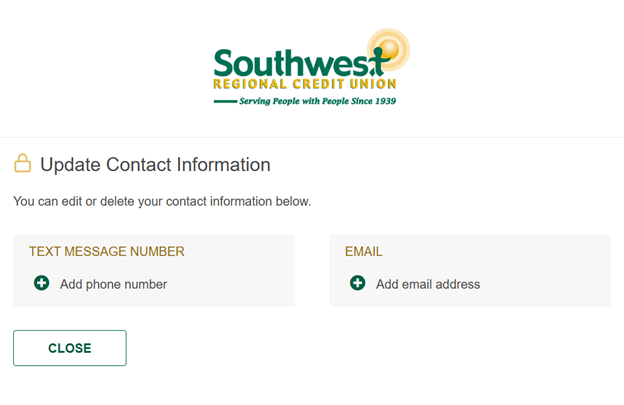
To add an email address or mobile phone number:
- Select Change 2-Step Verification Settings from Profiles & Settings page (in Online Banking).
- Select Add phone number or Add email address on the Update Contact Information page.
- Complete the appropriate page for adding a new mobile phone number for notifications via text message or an email address for notifications via email.
- Select Continue or Send Code (whichever is appropriate for that page).
- Receive a verification code. The code is sent by text message to the new mobile phone when a mobile phone number is added or by email to the new email address when an email address is added.
- Enter the verification code on the verification page and then select Continue
- Confirm that the appropriate page for adding a new mobile phone number or email address re-displays with a registration confirmation message.
- Select Continue to complete the registration.
Editing a Phone Number or Email Address
To update a mobile phone number, email address, or voice call number:
- Select Change 2-Step Verification Settings from the Profiles & Settings page.
- Select the edit icon on the Update Contact Information page beside the mobile phone number or email to be updated.
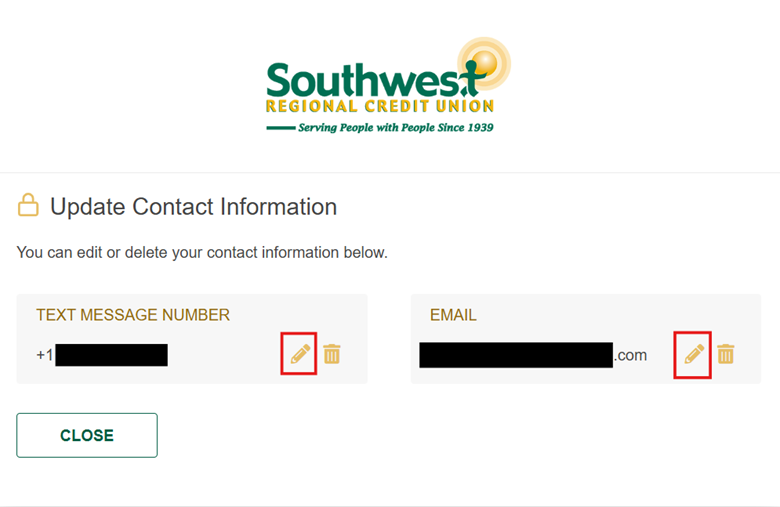
- Update the mobile phone number or email address on the appropriate page, then select Continue or Send Code (whichever is required for that page).
- Receive a verification code in a text message or email notification sent to the updated phone number or email address.
- Enter the verification code on the verification page that appears, then select Continue
6. Confirm that the appropriate page for updating a mobile phone number or email address re-displays with an “Update complete” confirmation message, then select Continue. The member is returned to the Update Contact Information page, now refreshed to show the updated information.
Deleting a Phone Number or Email Address
To delete a mobile phone number or email address:
-
Select Change 2Step Verification Settings from the Profiles & Settings page.
-
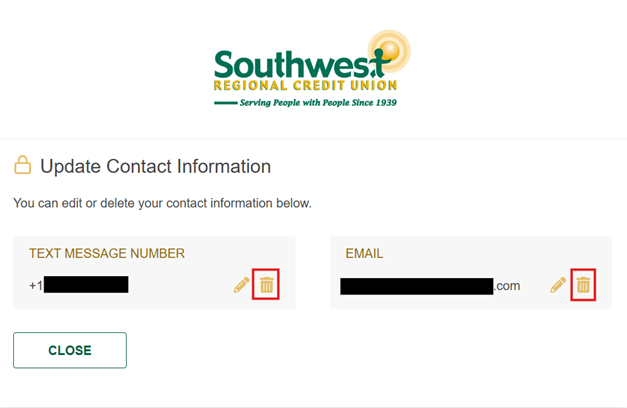
Select the delete icon on the Update Contact Information page beside the phone number or email to be deleted.
-
Confirm that the phone number, email address, or voice call number was deleted. The Update Contact Information page display is refreshed, and the deleted phone number or email address is removed and replaced with an Add phone number or Add email address
-
Select Close to return to the Profiles & Settings page from where the Update Contact Information page was opened.
Work better. Play better. Sleep better.
Southwest simply better.




© Southwest Regional Credit Union. All rights reserved.